> ## Documentation Index
> Fetch the complete documentation index at: https://guides.robylon.ai/llms.txt
> Use this file to discover all available pages before exploring further.

# Robylon × Webflow Integration: Add Chat to your site

> Install the Robylon chat widget on Webflow. Add chat widgets, secure webhooks, and event tracking-without code.

### **Step 1: Generate and Copy Your Robylon Chatbot Embed Code.**

1. Log in to your Robylon account and open the dashboard.
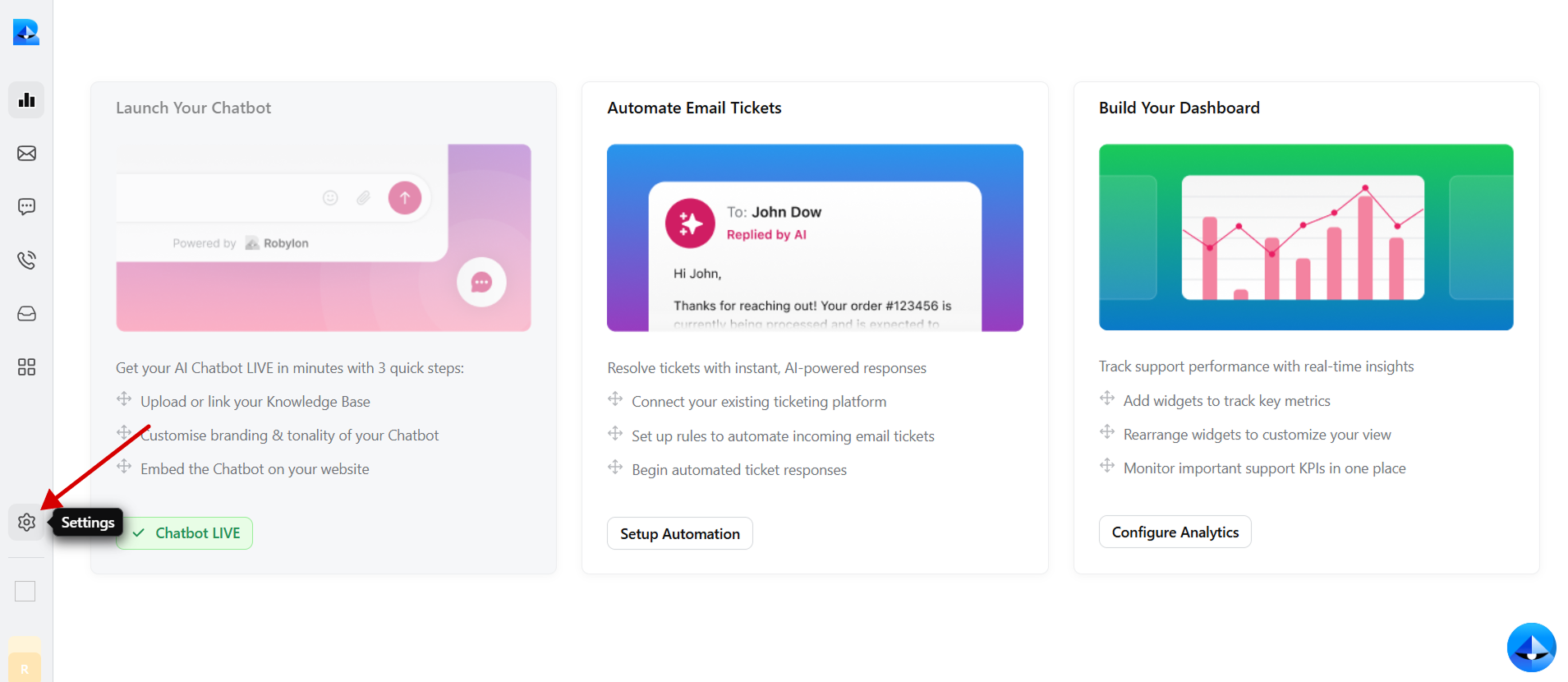
2. In the left panel, click on the settings button to navigate to the settings page.
   <Frame>
     <img src="https://mintcdn.com/robylonai/pG36l_PUrEUv4ovY/Robylon1.png?fit=max&auto=format&n=pG36l_PUrEUv4ovY&q=85&s=c7b4c4c51ba8839c514508c2199c7ac6" alt="Robylon dashboard showing the Settings menu to start Webflow chat widget setup" width="1909" height="830" data-path="Robylon1.png" />
   </Frame>
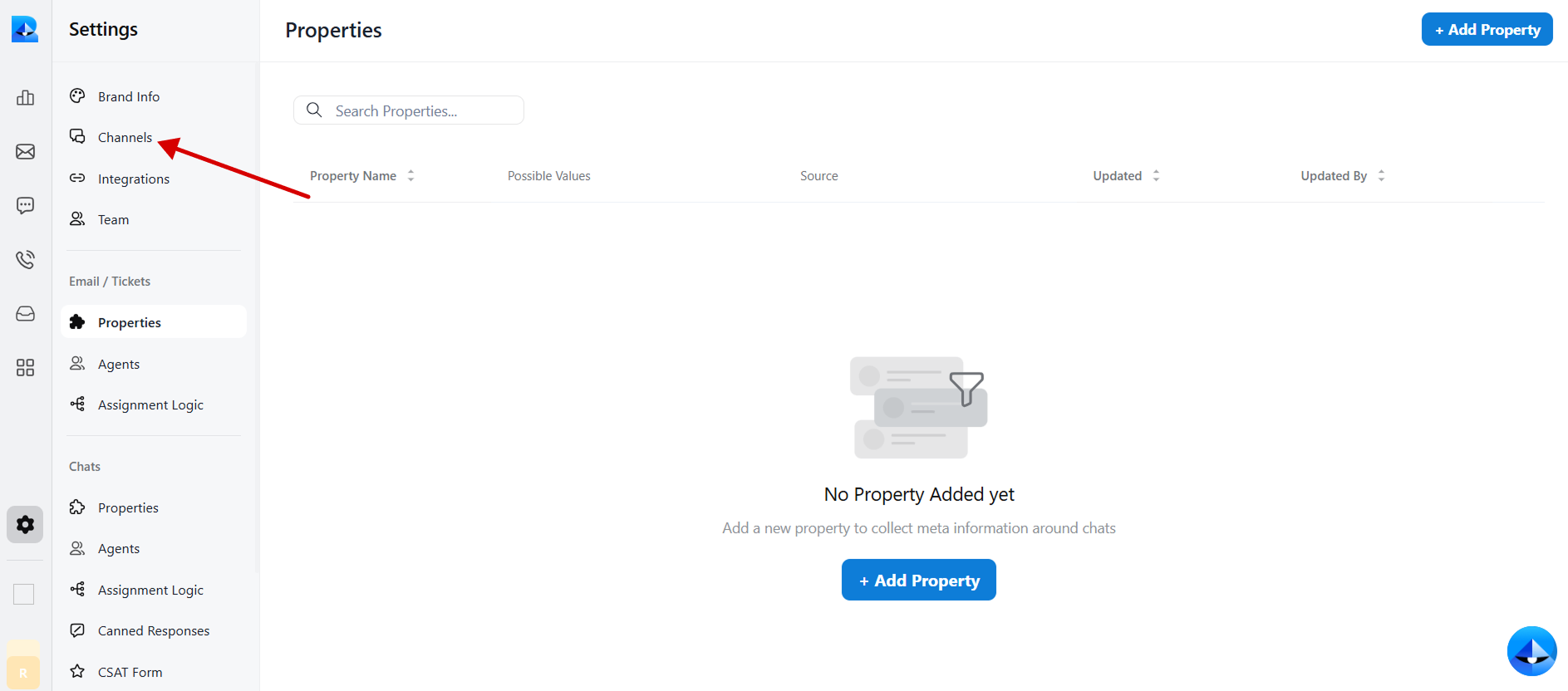
3. Within the settings tab, select [<u>Channels</u>](https://app.robylon.ai/settings/channels).
   <Frame>
     <img src="https://mintcdn.com/robylonai/pG36l_PUrEUv4ovY/Robylon2.png?fit=max&auto=format&n=pG36l_PUrEUv4ovY&q=85&s=3c68c15e0c43443b2b6cb649409e9644" alt="Robylon Settings → Channels screen highlighting Chatbot channel selection" width="1887" height="832" data-path="Robylon2.png" />
   </Frame>
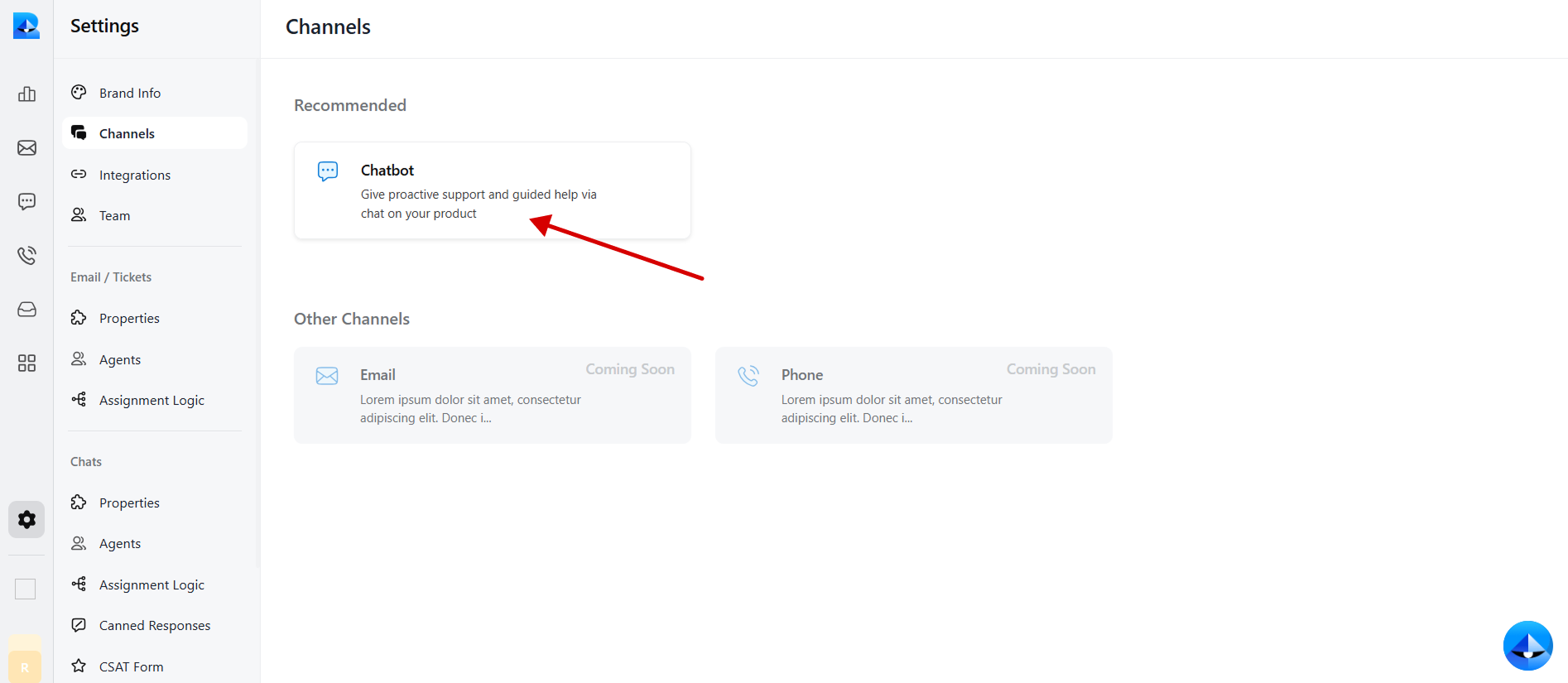
4. Click on the [<u>Chatbot</u>](https://app.robylon.ai/settings/channels/chatbot/interface) widget to access the chatbot details.
   <Frame>
     <img src="https://mintcdn.com/robylonai/pG36l_PUrEUv4ovY/Robylon3.png?fit=max&auto=format&n=pG36l_PUrEUv4ovY&q=85&s=3adcd9410a7c08fb6e7a558c1855631e" alt="Robylon Chatbot widget page where the Install tab is accessed" width="1894" height="825" data-path="Robylon3.png" />
   </Frame>
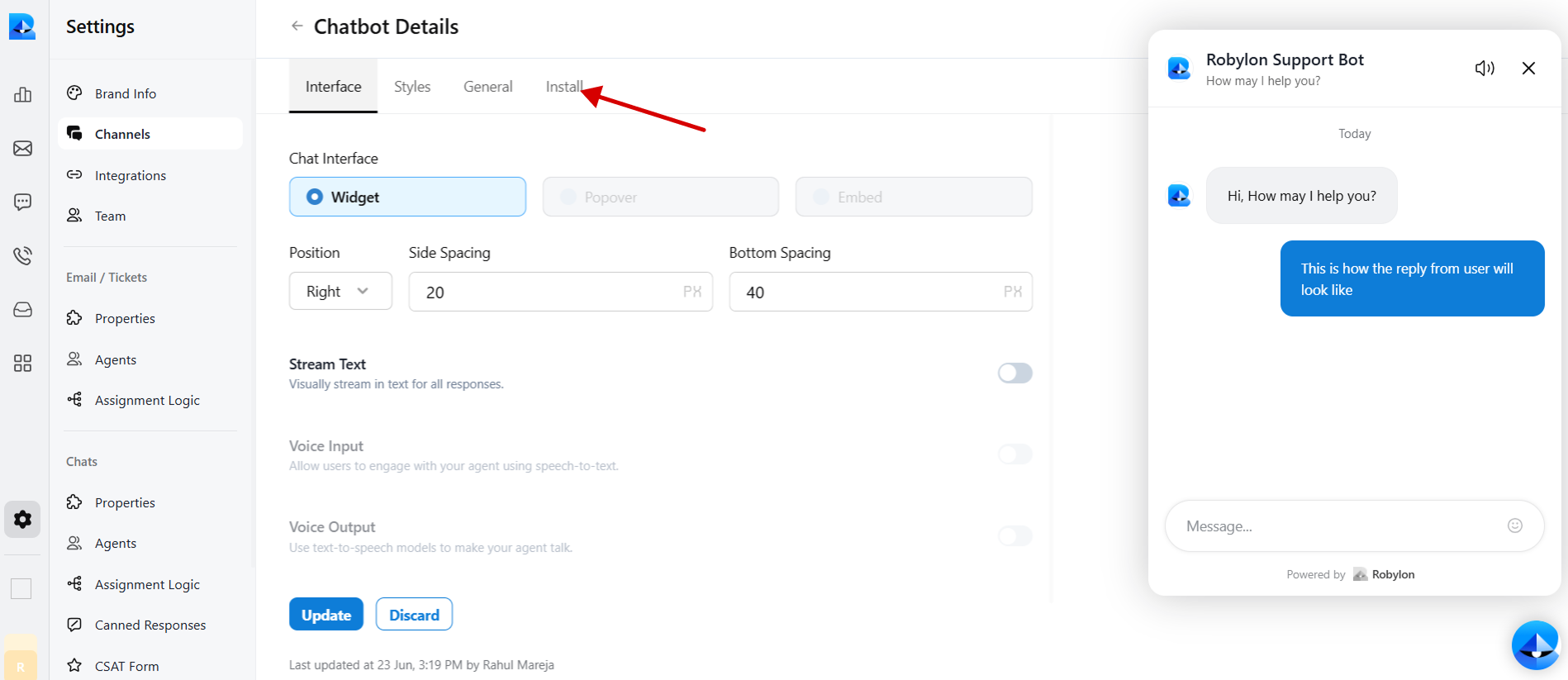
5. Navigate to the [<u>Install</u>](https://app.robylon.ai/settings/channels/chatbot/install) tab within the chatbot details page.
   <Frame>
     <img src="https://mintcdn.com/robylonai/pG36l_PUrEUv4ovY/Robylon4.png?fit=max&auto=format&n=pG36l_PUrEUv4ovY&q=85&s=9f163359a767d412287a835ad527f107" alt="Robylon Install tab set to JavaScript embed for Webflow integration" width="1898" height="823" data-path="Robylon4.png" />
   </Frame>
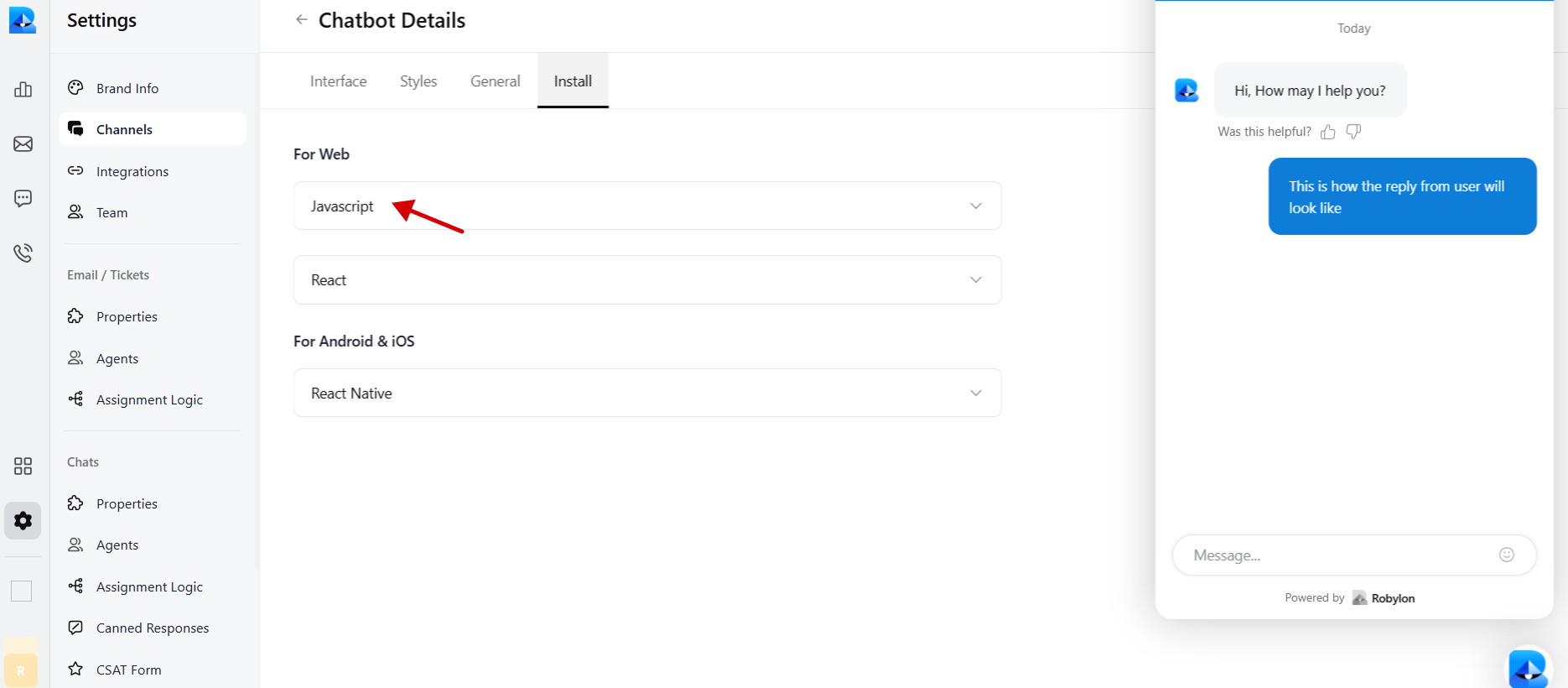
6. Select JavaScript to embed code in Webflow.
   <Frame>
     <img src="https://mintcdn.com/robylonai/pG36l_PUrEUv4ovY/Robylon5JS.png?fit=max&auto=format&n=pG36l_PUrEUv4ovY&q=85&s=66abec3b90dffa30028202101fbba7f2" alt="Robylon5js PnJavaScript embed code option selected in Robylon for Webflow embed" width="1870" height="820" data-path="Robylon5JS.png" />
   </Frame>
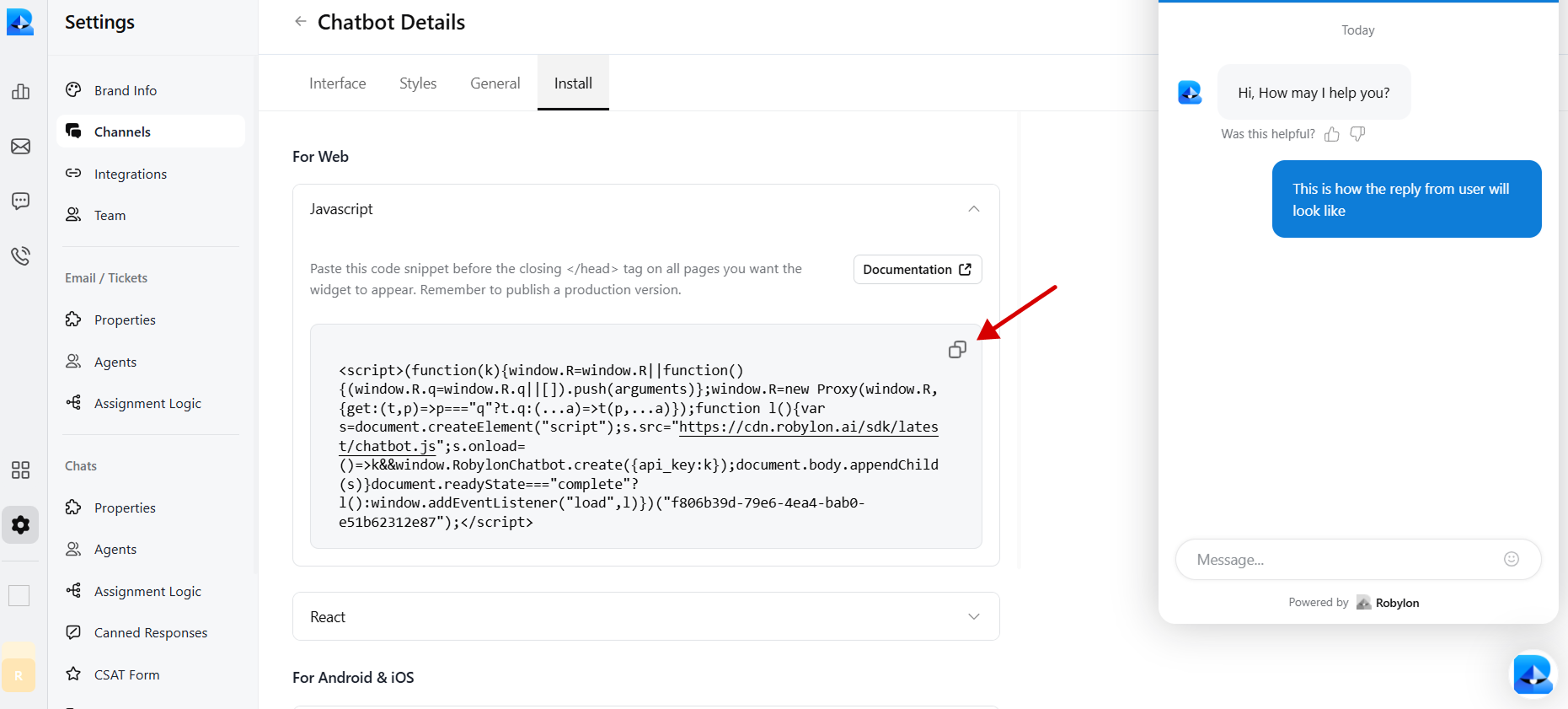
7. Copy the provided chatbot embed code.
   <Frame>
     <img src="https://mintcdn.com/robylonai/pG36l_PUrEUv4ovY/Robylon6JS.png?fit=max&auto=format&n=pG36l_PUrEUv4ovY&q=85&s=65edf9b8a91ff77472ba55f198cc122d" alt="Copy the embed code snippet for Robylon chatbot to use in Webflow pages" width="1861" height="841" data-path="Robylon6JS.png" />
   </Frame>

### **Step 2**: Embed the code in Webflow to Display Your Chatbot Widget 

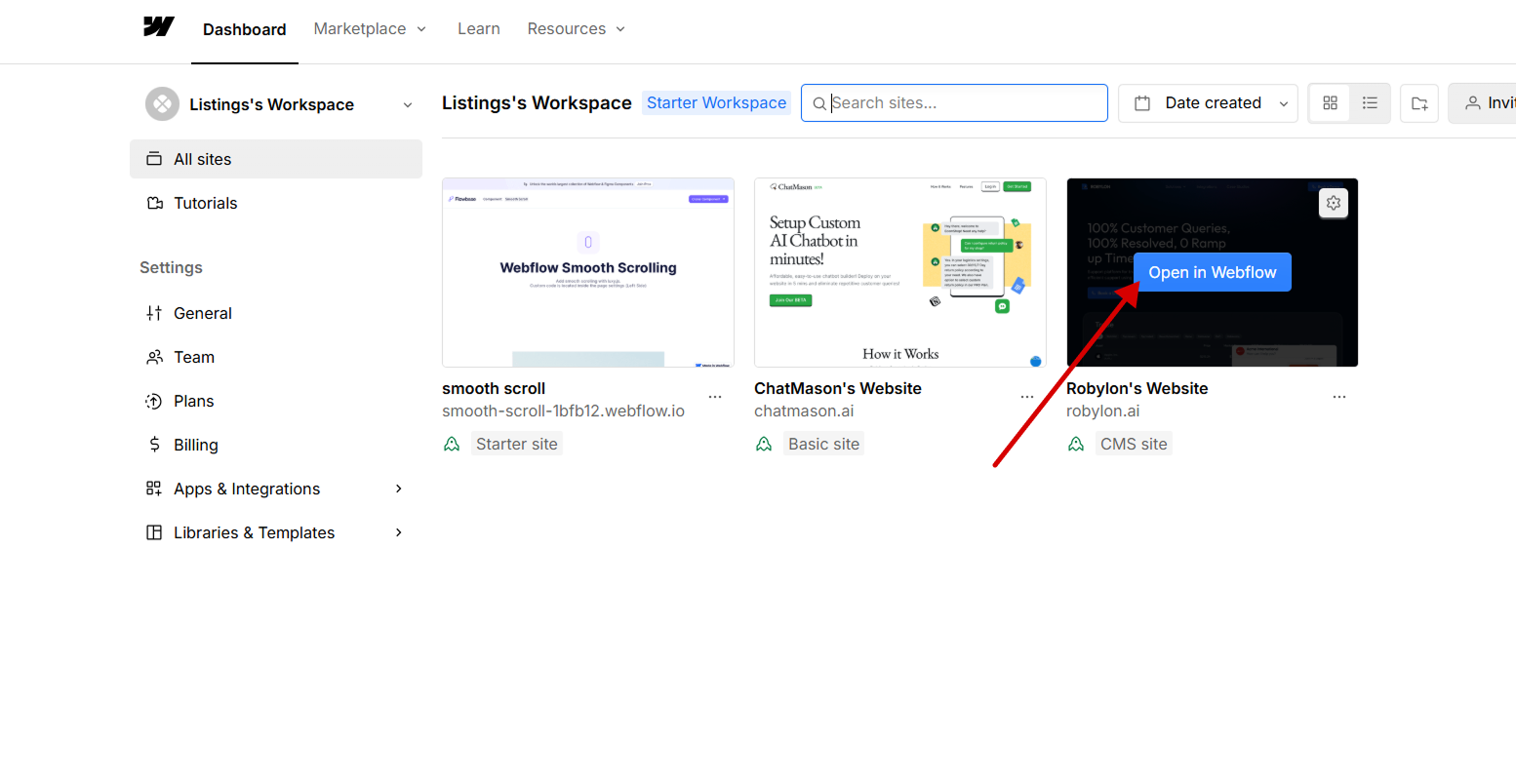
1. To embed the code in Webflow, log in to your Webflow account and go to your dashboard.
2. Hover over the website you want to add the chatbot to and click on “Open in Webflow”.
   <Frame>
     <img src="https://mintcdn.com/robylonai/pG36l_PUrEUv4ovY/images/Webflow1.png?fit=max&auto=format&n=pG36l_PUrEUv4ovY&q=85&s=1b5c0da25f352d3fc5f9c08961c9e577" alt="On the Webflow dashboard listing’s workspace, select which site to embed the Robylon chatbot" width="1554" height="804" data-path="images/Webflow1.png" />
   </Frame>
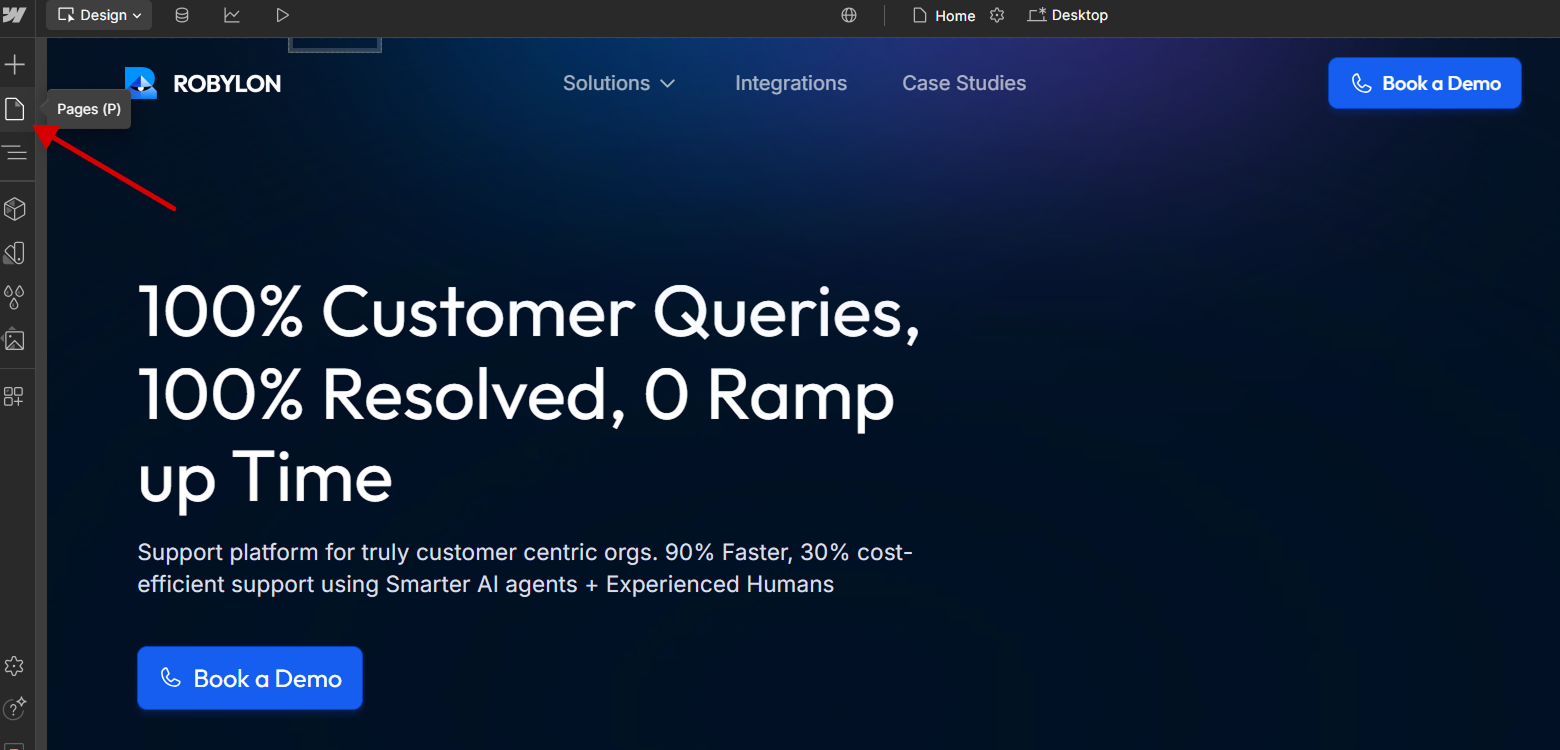
3. On the designer page, click on the file icon (Pages) in the left navbar of the Webflow site designer.
   <Frame>
     <img src="https://mintcdn.com/robylonai/pG36l_PUrEUv4ovY/images/Webflow2.png?fit=max&auto=format&n=pG36l_PUrEUv4ovY&q=85&s=4e9224539cc9fa8c6c7d4040f3b97e01" alt="Webflow page settings icon, opening the custom code area for chatbot embed" width="1560" height="750" data-path="images/Webflow2.png" />
   </Frame>
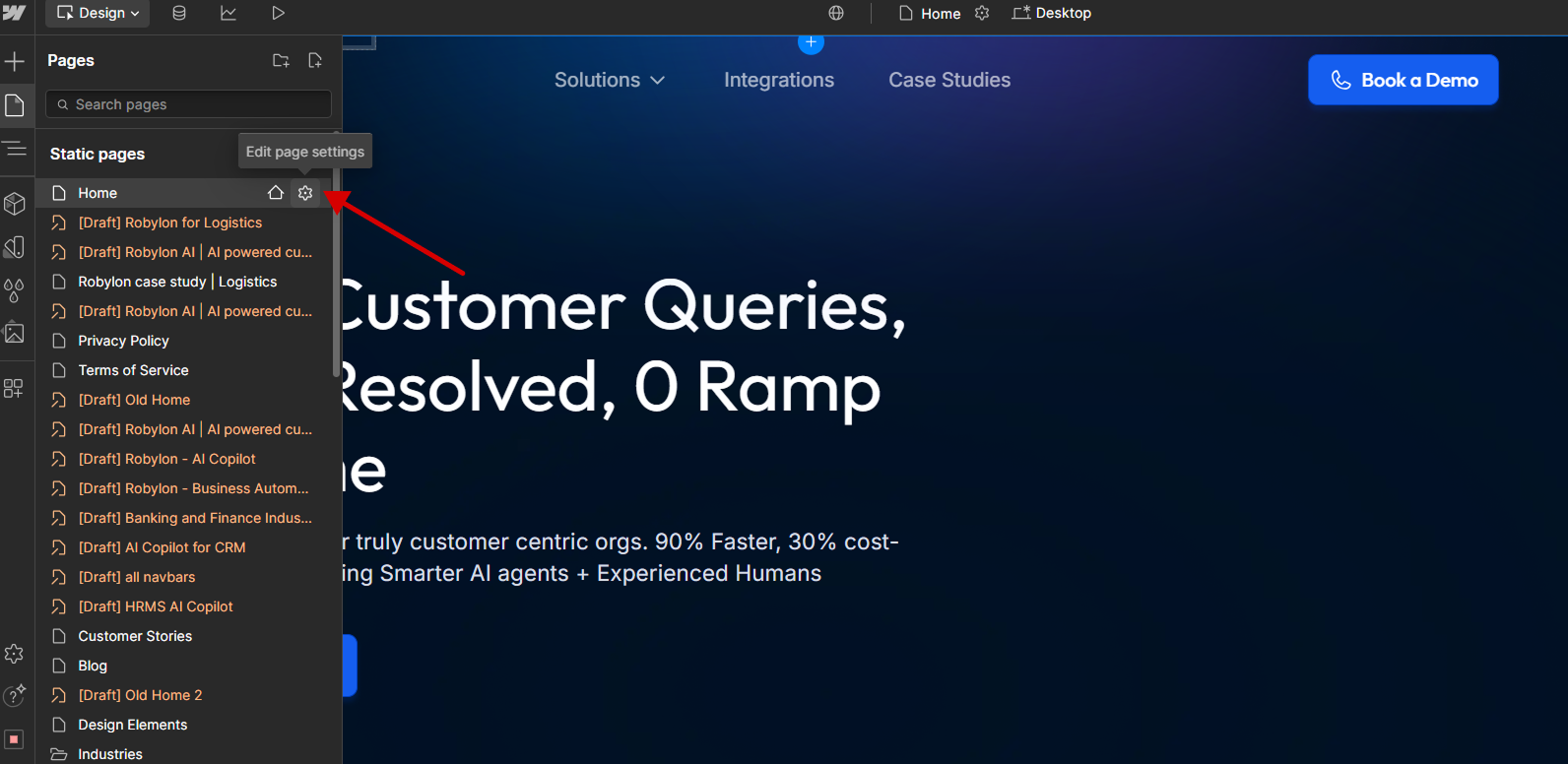
4. Hover over the page you want to embed the chatbot on and click on the settings icon of that page.
   <Frame>
     <img src="https://mintcdn.com/robylonai/pG36l_PUrEUv4ovY/images/Webflow3.png?fit=max&auto=format&n=pG36l_PUrEUv4ovY&q=85&s=bad0452cd29aa0f881f463466873cc1d" alt="In the pages panel, select the Edit Page Settings gear icon to configure the Home page before adding Robylon chatbot script" width="1592" height="776" data-path="images/Webflow3.png" />
   </Frame>
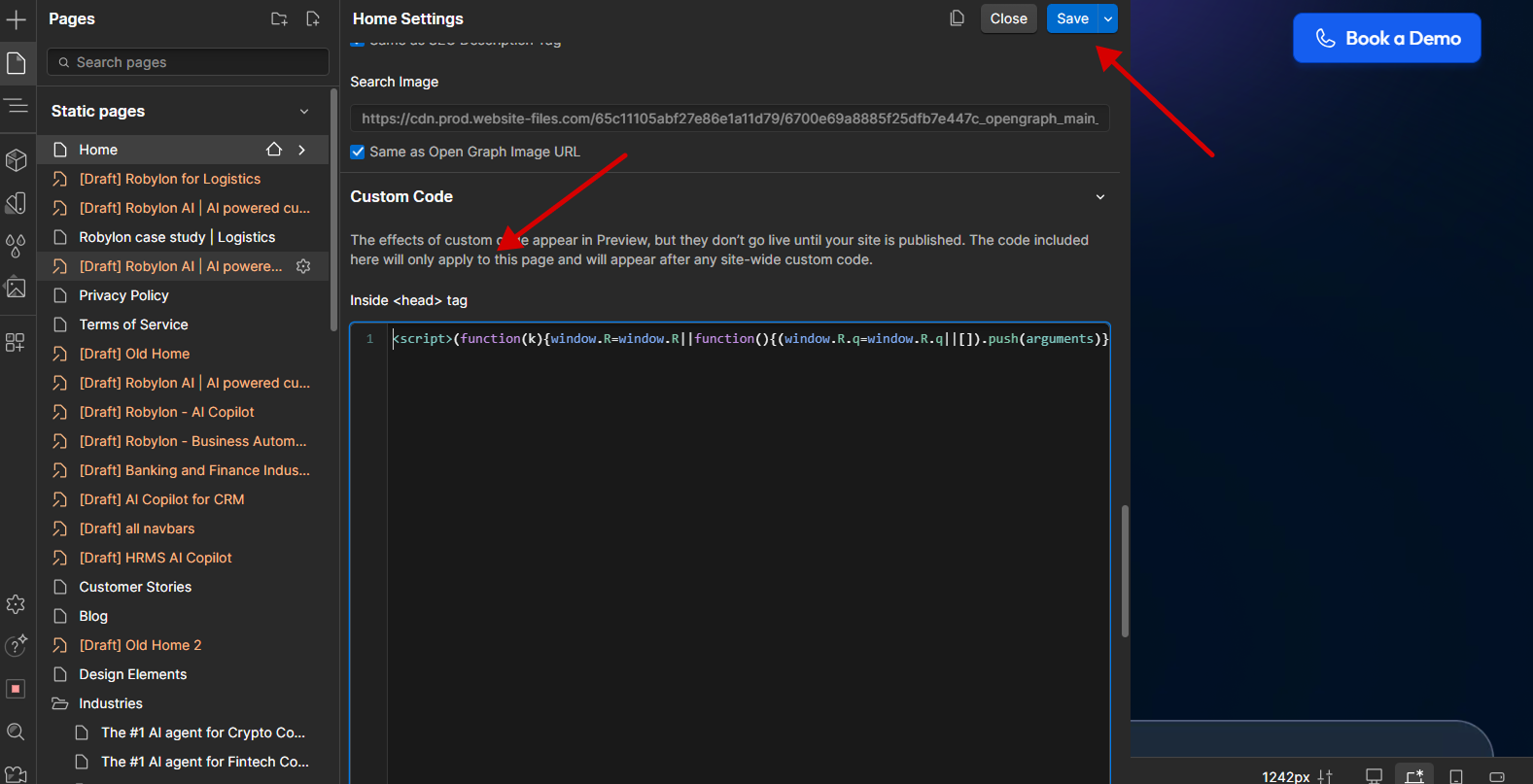
5. Scroll down in the settings panel of that page till you reach the Custom code section. Paste the Robylon chatbot copied code in the custom code section inside the head tag. Then save the changes.
   <Frame>
     <img src="https://mintcdn.com/robylonai/pG36l_PUrEUv4ovY/images/Webflow4.png?fit=max&auto=format&n=pG36l_PUrEUv4ovY&q=85&s=977c929ed54ef4b811e41e869879920e" alt="Webflow page’s Custom Code section with &#x22;Paste embed code in head tag&#x22; instruction" width="1577" height="807" data-path="images/Webflow4.png" />
   </Frame>
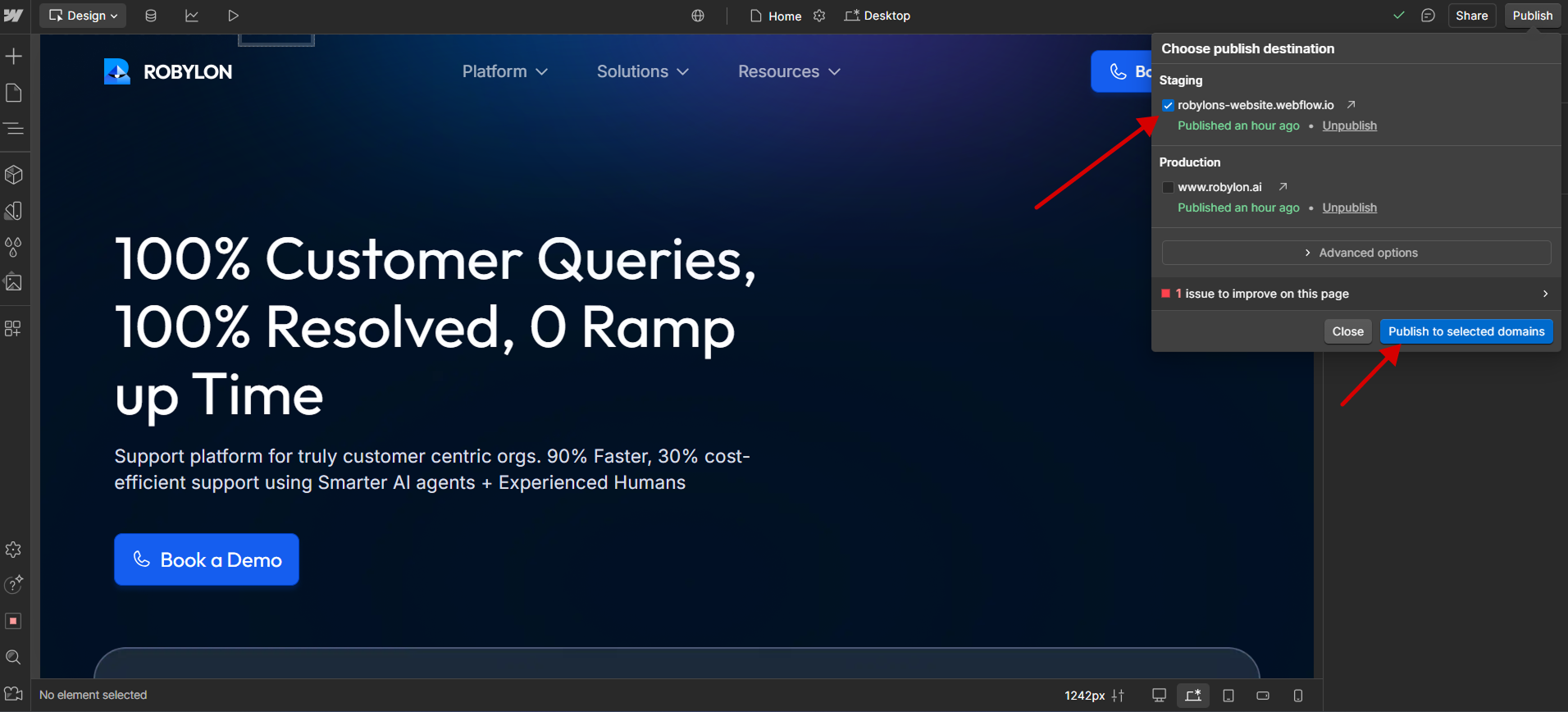
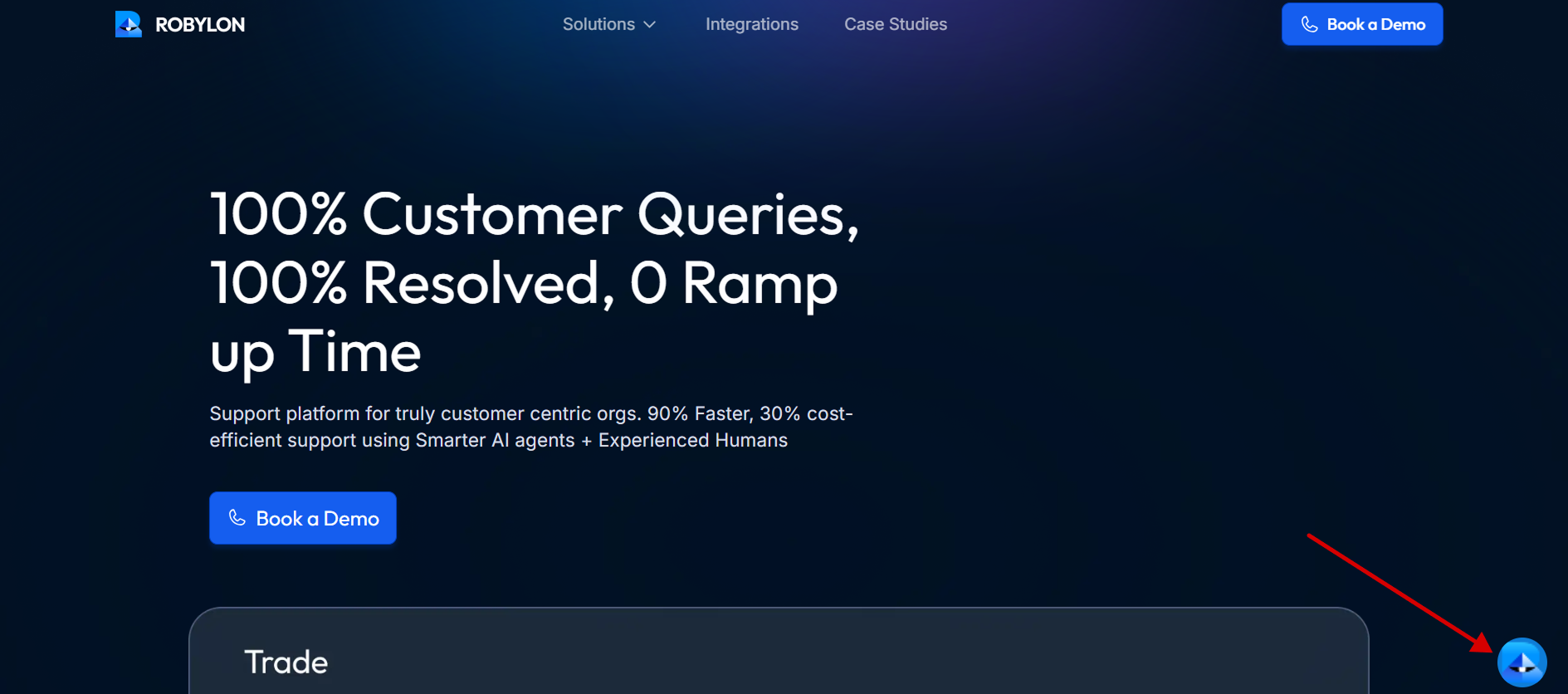
6. Publish your website for staging to see the chat icon on that page.
   <Frame>
     <img src="https://mintcdn.com/robylonai/pG36l_PUrEUv4ovY/images/Webflow5.png?fit=max&auto=format&n=pG36l_PUrEUv4ovY&q=85&s=e5c6923f533a85fa2c8e9d7ad8bfb26d" alt="Webflow publish settings screen showing staging and production domains for deploying Robylon chatbot integration" width="1912" height="868" data-path="images/Webflow5.png" />
   </Frame>
7. Test the chatbot to see if it works fine, then you can publish it for production.
   <Frame>
     <img src="https://mintcdn.com/robylonai/pG36l_PUrEUv4ovY/images/Webflow6.png?fit=max&auto=format&n=pG36l_PUrEUv4ovY&q=85&s=c9d4d8a6e4ac0e478517e675800d61c9" alt="Webflow site with Robylon chatbot launcher icon visible in the bottom-right corner after integration" width="1889" height="836" data-path="images/Webflow6.png" />
   </Frame>

   <Frame>
     <img src="https://mintcdn.com/robylonai/PjPIolzErNMQ4u8B/images/Webflow7.png?fit=max&auto=format&n=PjPIolzErNMQ4u8B&q=85&s=74a9c74ac4d6ae9534dc1271524748db" alt="Webflow post-publish preview showing Robylon chatbot launcher on the site" width="1869" height="846" data-path="images/Webflow7.png" />
   </Frame>